Manim Nerd Font Icons
Tip
Check out the Example Gallery for a collection of code snippets together with their corresponding output.
Tip
Have a look at the Nerd Font Cheat Sheet for a list of all available icons.
Example: NerdfontIconExample 
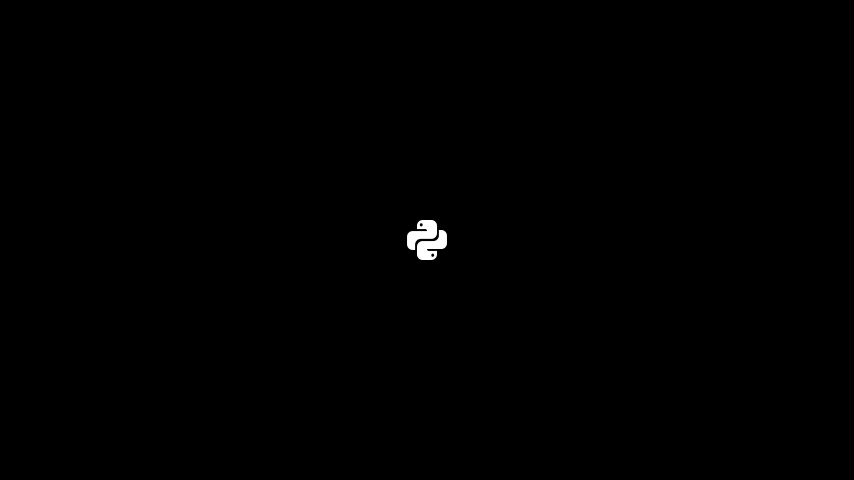
Code: NerdfontIconExample
import manim as m
from manim_nerdfont_icons.icons import nerdfont_icon

class NerdfontIconExample(m.Scene):

    def construct(self):

        icon = nerdfont_icon("language-python")
        self.add(icon)
Readme



About this Project
This project is a Python Module that provides a set of icons from the Nerd Fonts project for the usage with Manim. Manim can use any font in principle. Nerd Fonts and their icons can be used in Manim as well! This project allows you to create Nerd Font icons in Manim by referencing the icon name or unicode. This might be more convenient than copy pasting items as strings into your code. This package also takes care of providing a font, so you even don’t need to have a nerd font installed on your system.
Installation
Install the package with pip:
pip install manim-nerdfont-icons
Minimal Example
Please make sure you have manim installed and running on your machine
Below is a minimal example of how to use the Module.
import manim as m
from manim_nerdfont_icons.icons import nerdfont_icon


class NerdfontIconUnicodeExample(m.Scene):

    def construct(self):
        # Set the background color
        self.camera.background_color = "#ece6e2"

        icon = nerdfont_icon("language-python", color=m.BLUE)

        self.add(icon)


if __name__ == '__main__':
    import os
    from pathlib import Path

    FLAGS = "-pqm"
    SCENE = "NerdfontIconUnicodeExample"

    file_path = Path(__file__).resolve()
    os.system(f"manim {Path(__file__).resolve()} {SCENE} {FLAGS}")
This should yield a Scene that looks like so:

Documentation
This project uses sphinx for generating the documentation.
It also uses a lot of sphinx extensions to make the documentation more readable and interactive.
For example the extension myst-parser is used to enable markdown support in the documentation (instead of the usual .rst-files).
It also uses the sphinx-autobuild extension to automatically rebuild the documentation when changes are made.
By running the following command, the documentation will be automatically built and served, when changes are made (make sure to run this command in the root directory of the project):
sphinx-autobuild ./docs/source/ ./docs/build/html/
If sphinx extensions were added the requirements_dev.txt file needs to be updated.
These are the requirements, that readthedocs uses to build the documentation.
The file can be updated using this command:
poetry export -f requirements.txt --output requirements.txt --with dev
This project features most of the extensions featured in this Tutorial: Document Your Scientific Project With Markdown, Sphinx, and Read the Docs | PyData Global 2021.
Contents: